
AI-assisted content notice: This documentation was created with support from artificial intelligence and has been reviewed by humans for accuracy.
Telegram CE
What can I do with the Telegram Module?
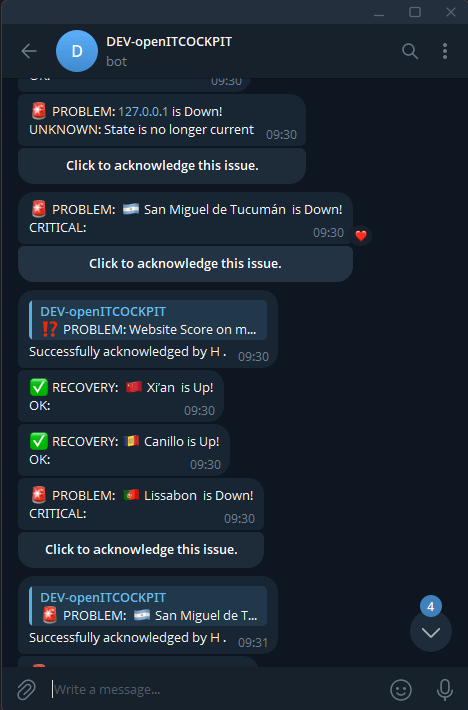
Like other notification modules, the Telegram module uses a Telegram bot to send notifications and acknowledgements from openITCOCKPIT to a Telegram chat.
How To Configure?
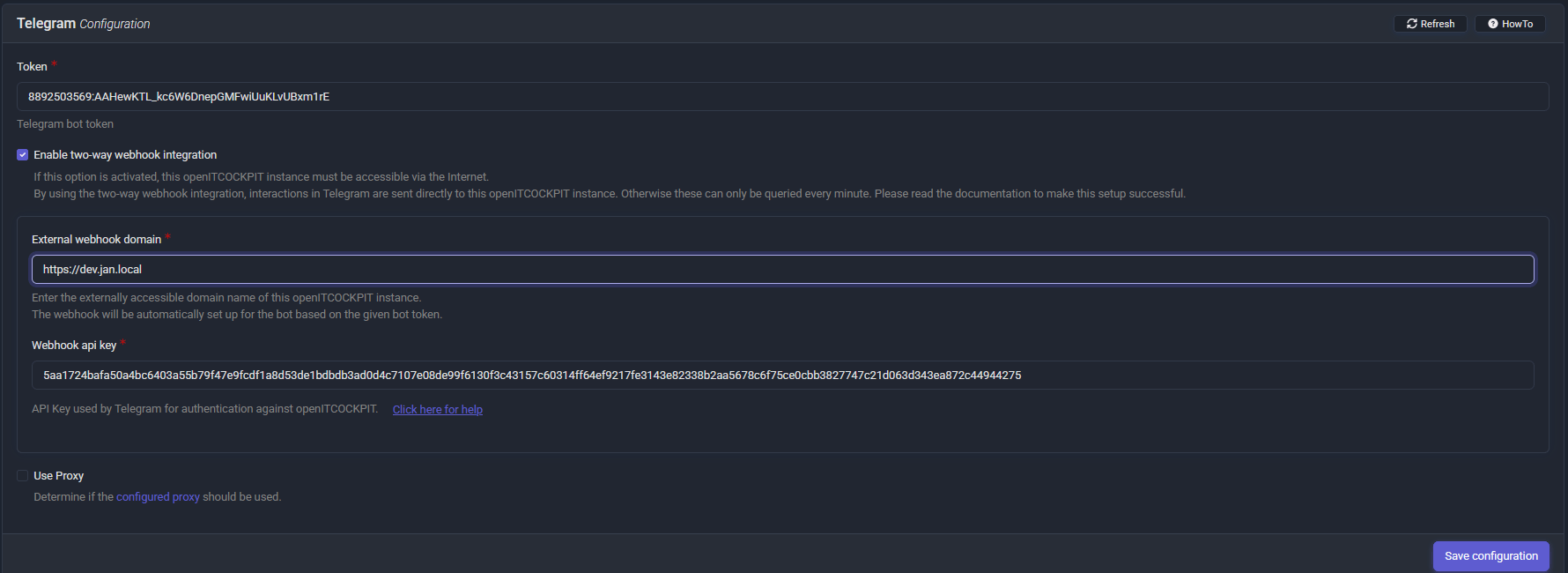
You can find the Telegram module settings under System Configuration → APIs → Telegram.
| Field name | Required field | Description |
|---|---|---|
| API Token |  |
The API token provided by BotFather when creating your Telegram bot. |
| Use Proxy Server | Specifies whether the configured proxy server should be used. |
Requirements
You need at least one Telegram account to use the Telegram module. The Telegram bot sends notifications to users who have connected to the bot and authenticated using a key generated in openITCOCKPIT.
1. Create a Telegram Bot
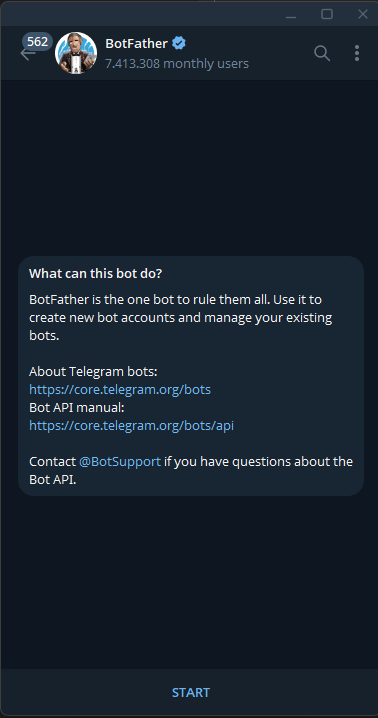
- Start a new Telegram chat with @BotFather.
- Click "start" and run
/newbot:- Choose a name for your bot, such as
DEV-openITCOCKPIT - Choose a username for your bot, such as
oitc_uzumymw_bot
- Choose a name for your bot, such as
- Open your openITCOCKPIT instance
- Copy the API token provided by BotFather into System Configuration -> APIs -> Telegram.
2. Configure Contacts
- Navigate to Monitoring->Objects->Contacts.
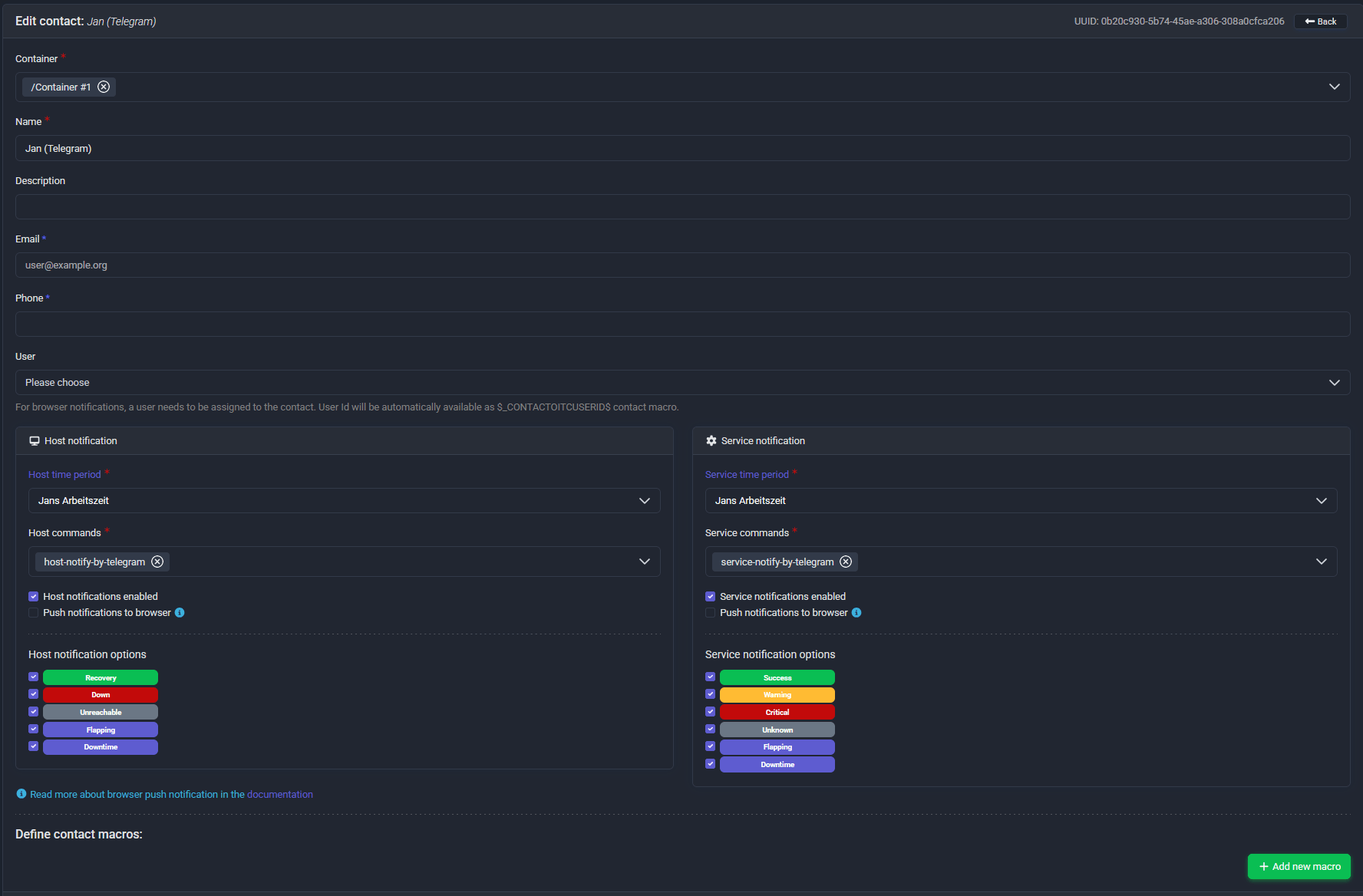
- Create a new contact or edit an existing one.
- Add the notification commands you want to use:
host-notify-by-telegramservice-notify-by-telegram
- Save your changes, then navigate to System Configuration -> APIs -> Telegram Page.
- The page displays the users configured to use the Telegram notification commands.
- Click Generate Key next to the relevant user and send the generated key to that user.

3. Joining Your Bot
- Ask the user to find your bot in the Telegram app and click Start to open a chat. In this example, the bot can be
found by searching for
oitc_uzumymw_bot.
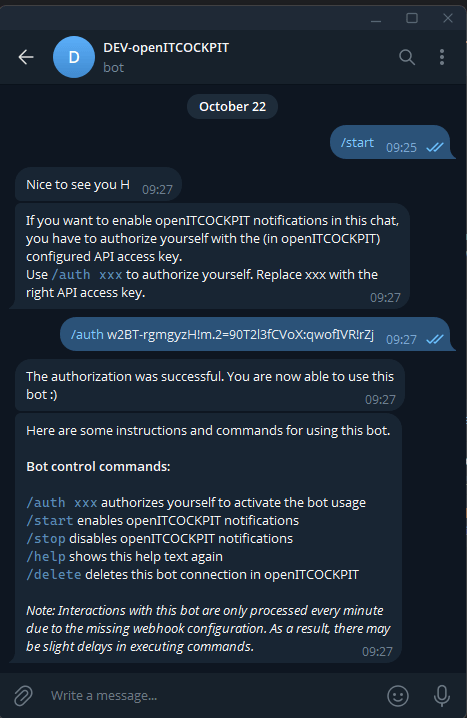
- After starting the chat, the user must authenticate with the bot.
- The user must send
/auth THEUSERSGENERATEDKEYto the bot, replacing THEUSERSGENERATEDKEY with the key generated for their account. The bot will send a confirmation message if authentication is successful.
Now, the user has several options to chose from:
/startenables openITCOCKPIT notifications/stopdisables openITCOCKPIT notifications/helpshows this help text again/deletedeletes this bot connection in openITCOCKPIT

Useful info
Interactions with the API may take up to one minute to complete: If your openITCOCKPIT instance is not accessible from the internet, you may need to wait until the next cron job runs before changes take effect.
After the user has authenticated successfully, you can delete their generated key from System Configuration -> APIs -> Telegram Page.