Software Inventory and Patch Management CE
openITCOCKPIT's Software Inventory and Patch Management allows you to keep track of installed software and available updates on your monitored systems. This helps you ensure that your systems are up-to-date and secure.
The information is collected by the openITCOCKPIT Agent and can be viewed and managed via the openITCOCKPIT web interface.
The Agent can operate in Pull or Push mode, depending on your network setup and requirements. Please refer to the Agent Documentation for more details on installation and configuration.
Supporting Operating Systems
The Software Inventory feature supports a wide range of operating systems, including:
- Linux: Various distributions such as Ubuntu, Debian, Red Hat, AlmaLinux, Rocky Linux, SUSE, Arch Linux, and more.
- Windows: All modern versions of Windows, including Windows Server editions.
- macOS: Supported versions of macOS.
For detailed information about how the agent collects software inventory data or available updates please see the sections below.
Does the agent install updates?
No, the openITCOCKPIT Agent does not install any updates on monitored systems.
It only collects information about installed software and available updates. The actual installation of updates must be performed manually or via a separate patch management solution.
Monitoring for Updates
openITCOCKPIT provide the System Updates check, which will alert you when updates are available.
Security updates will be always result in a CRITICAL state, while regular updates will result in a WARNING state.
Depending on your requirements, you can configure the check to only alert for security updates, or for all available updates.
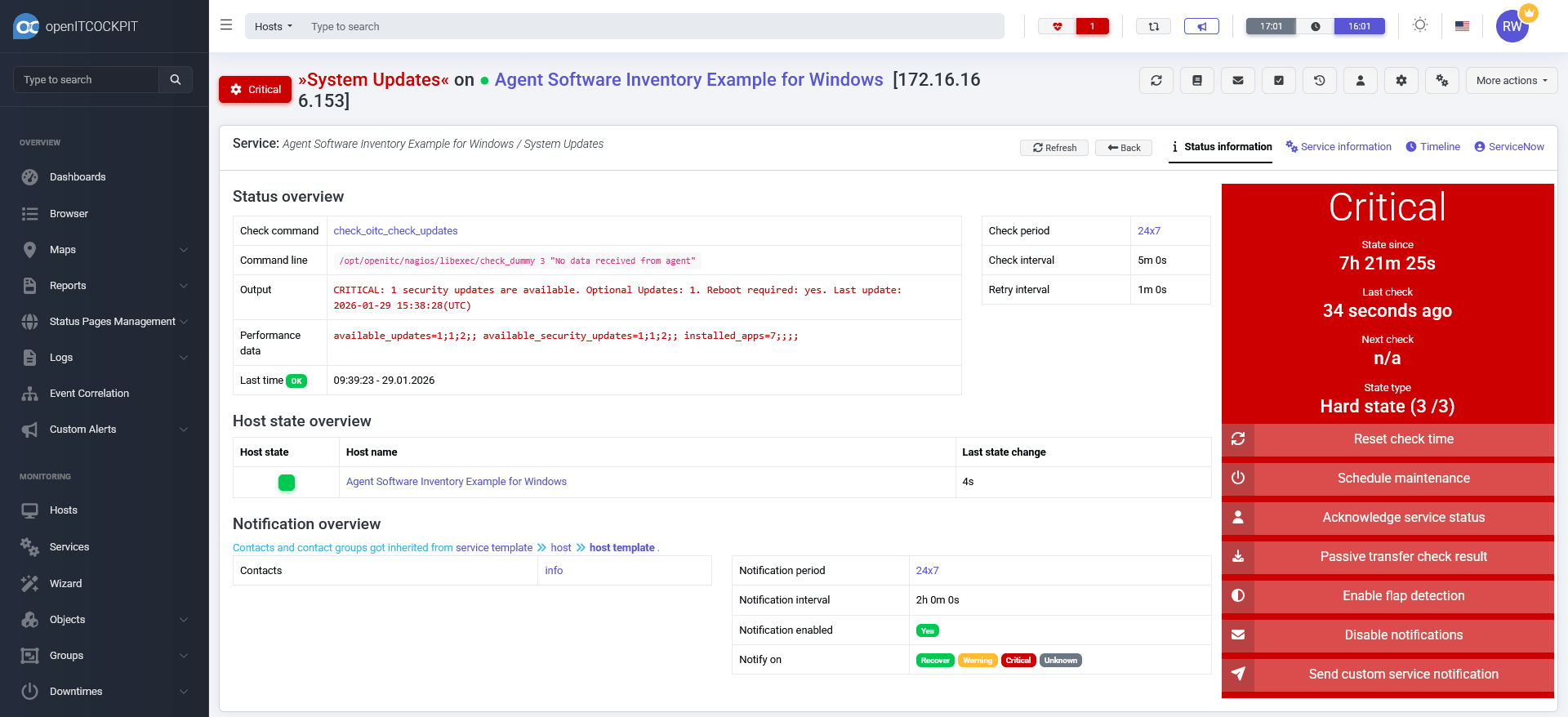
Software Inventory View
Per Host
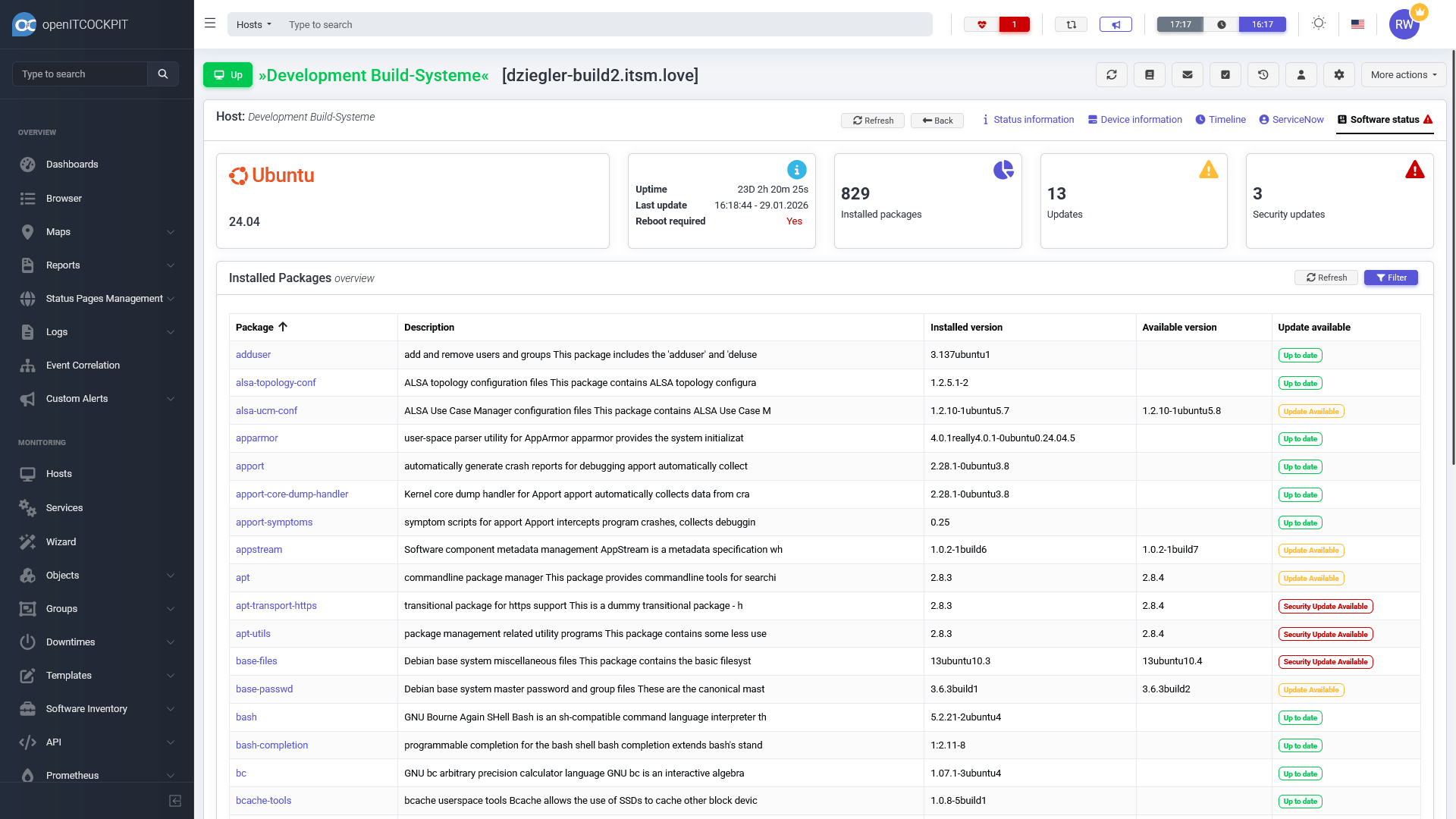
The Host details view in openITCOCKPIT has a dedicated Software Inventory tab, where you can see all installed software on the monitored system.
For linux systems, you will see a list of all installed packages, along with their version, description, and available updates.
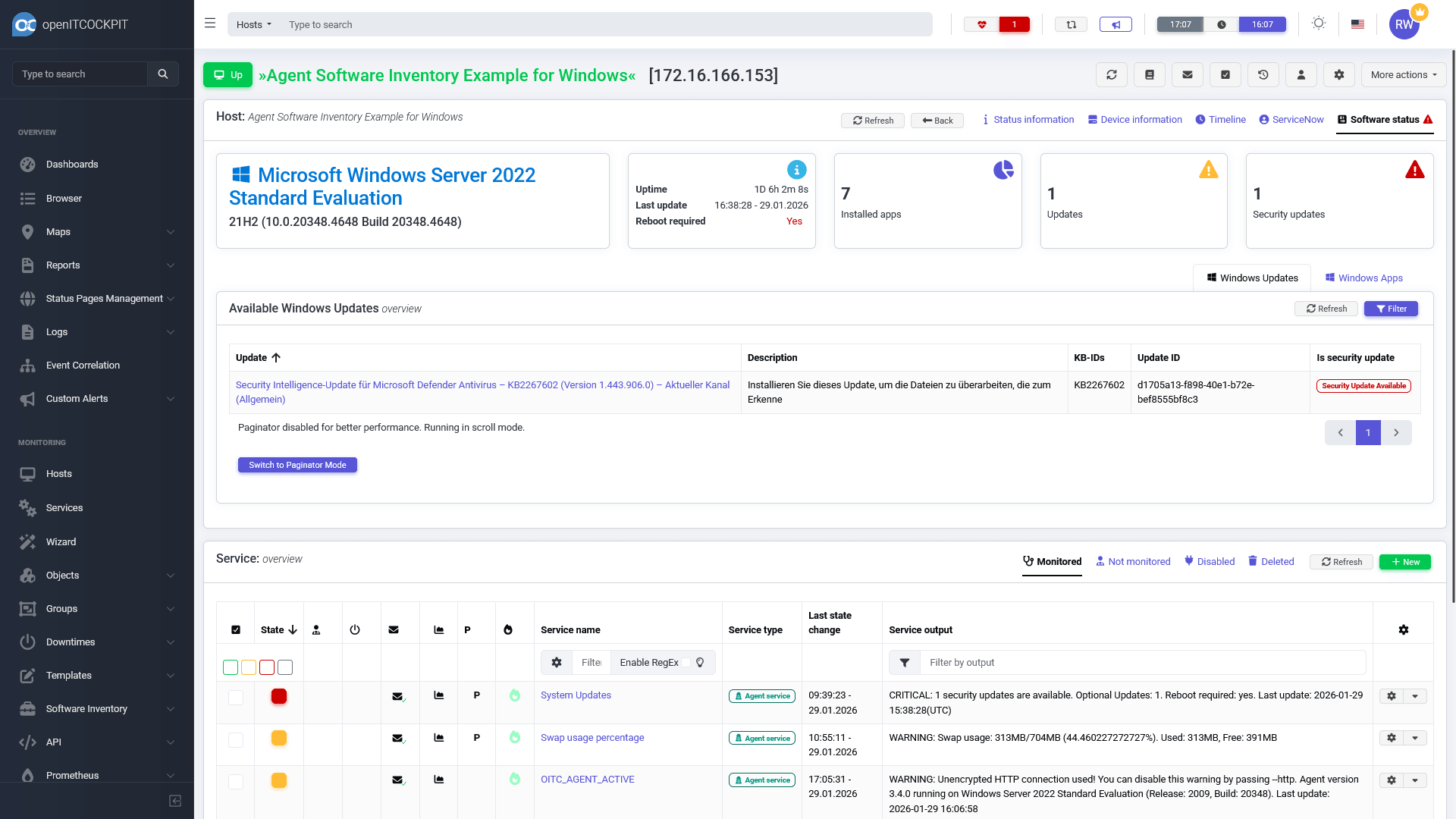
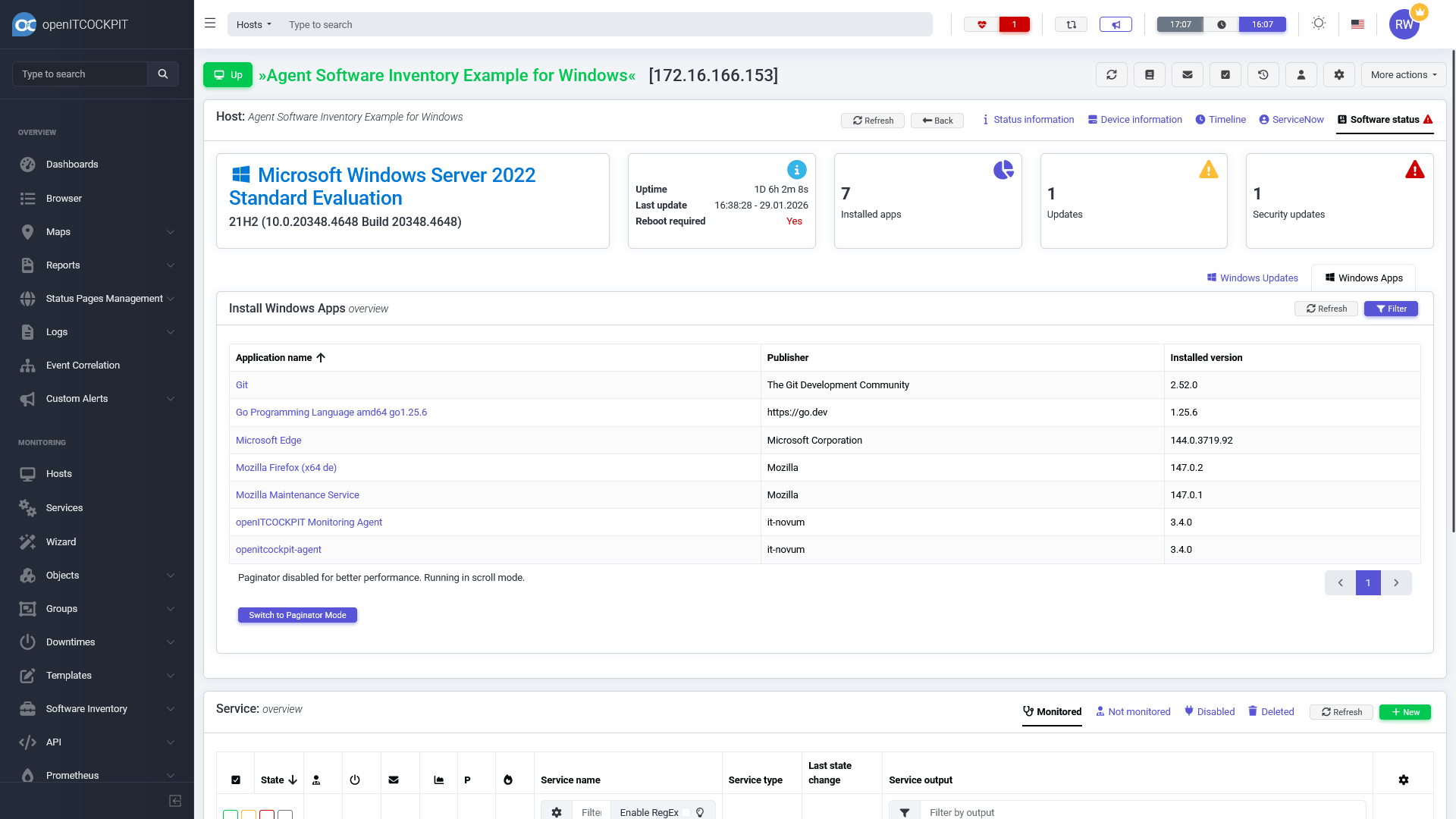
Windows and macOS systems will show available system updates and installed software (Apps) in seperate sections.
Patch Status Overview
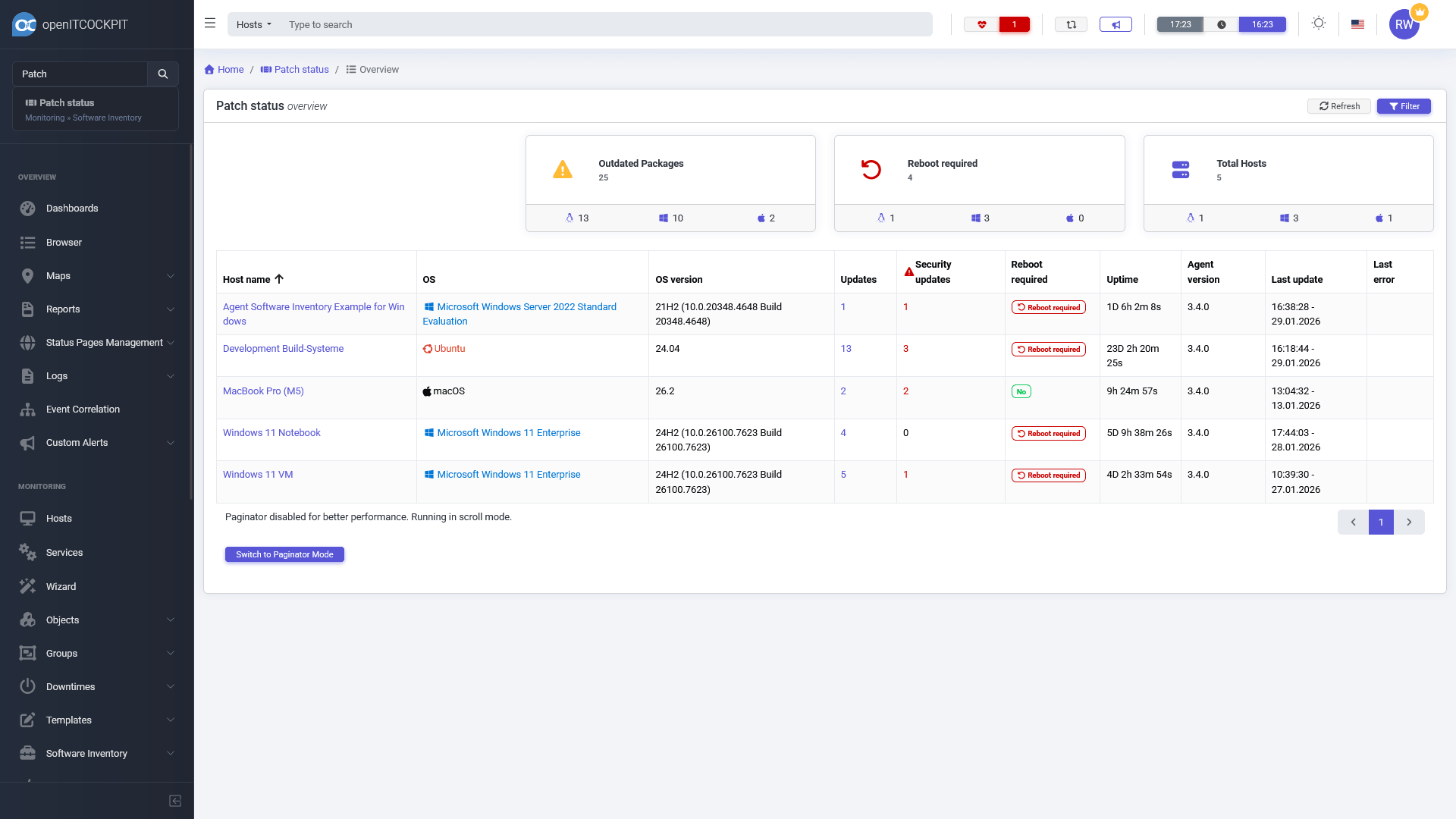
The Patch Status Overview provides a quick summary of the update status for all monitored systems.
The table shows the operating system type, number of available update, the uptime and if a reboot is required. You can also click on the number of available updates (or security updates) to get a list of affected packages or updates.
Packages Overview
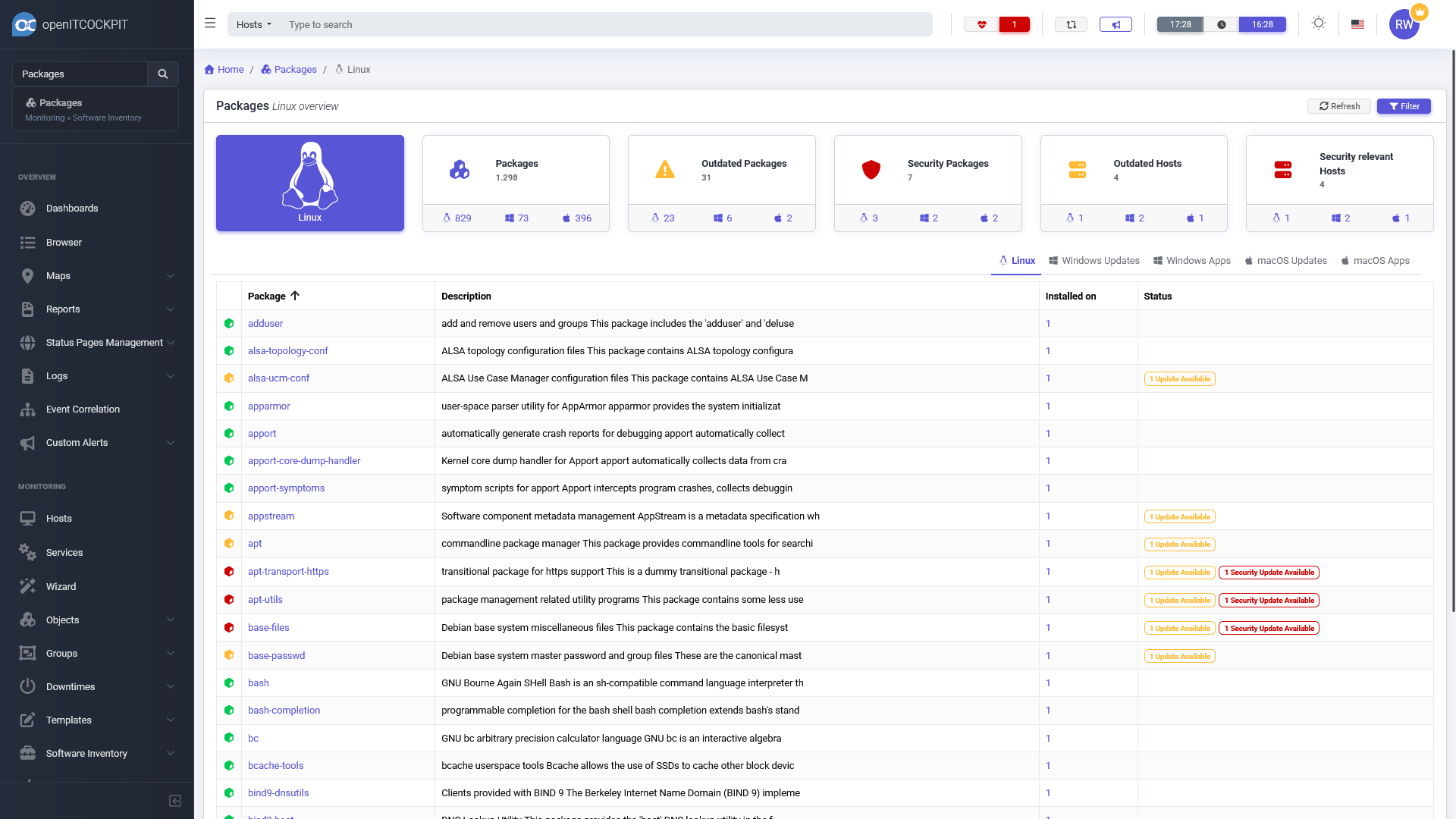
For Linux systems, openITCOCKPIT will display a list of all packages that are installed across your monitored systems. This allows you to quickly see which packages are most commonly used, and identify any outdated or vulnerable packages.
By clicking on the package name, you can see a list of all systems that have the package installed, along with their version and available versions.
By clicking on the number in the Installed On column, you can see a list of all systems that have the package installed.
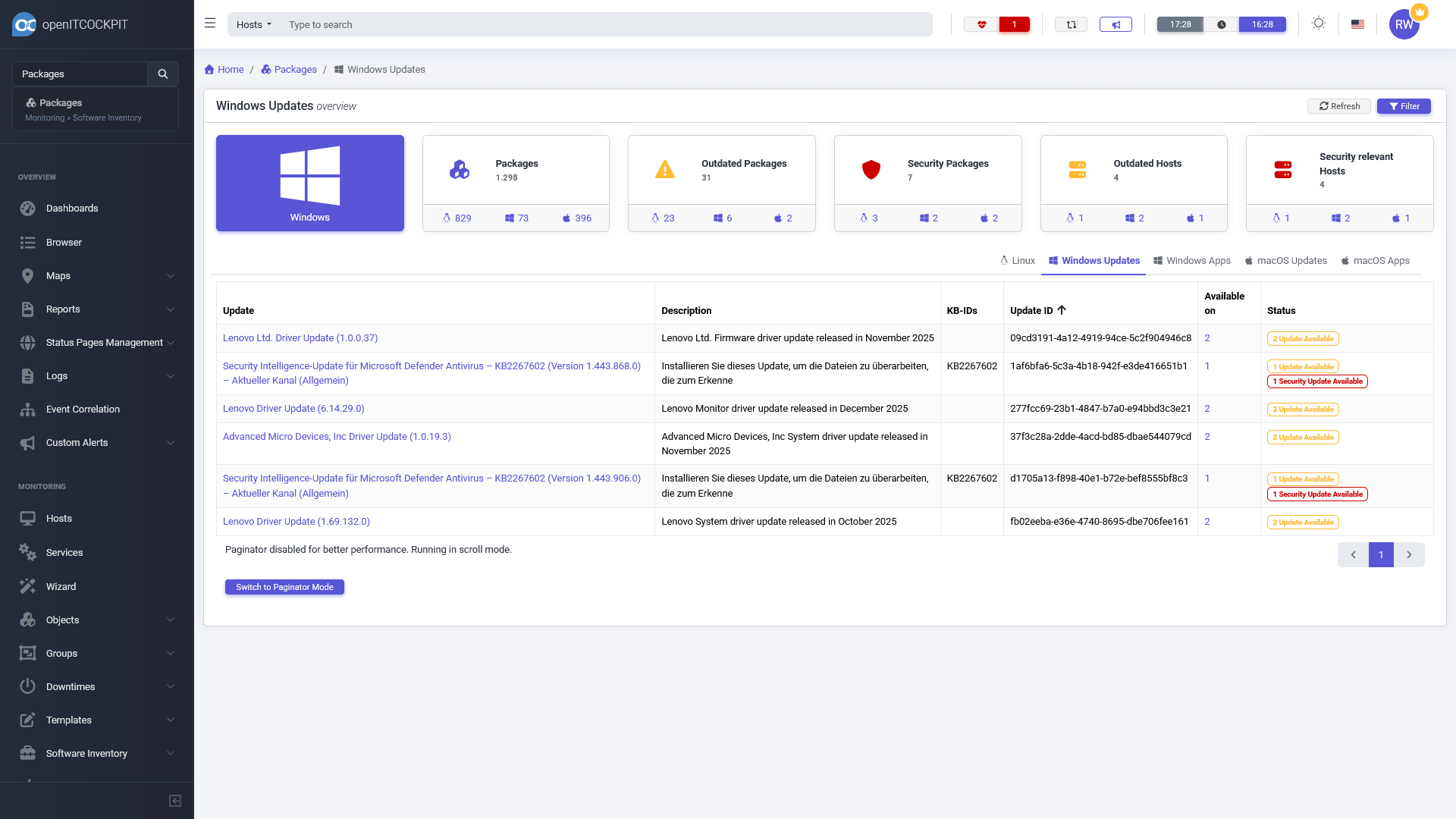
For Windows and macOS systems, a similar overview is available system updates and for installed software (Apps).
The table contains the name, the Microsoft Knowledge Base (KB) ID, the unique Update ID, and if the update is a security update.
By clicking on the number in the Available On column, you can see a list of all systems that require the update.
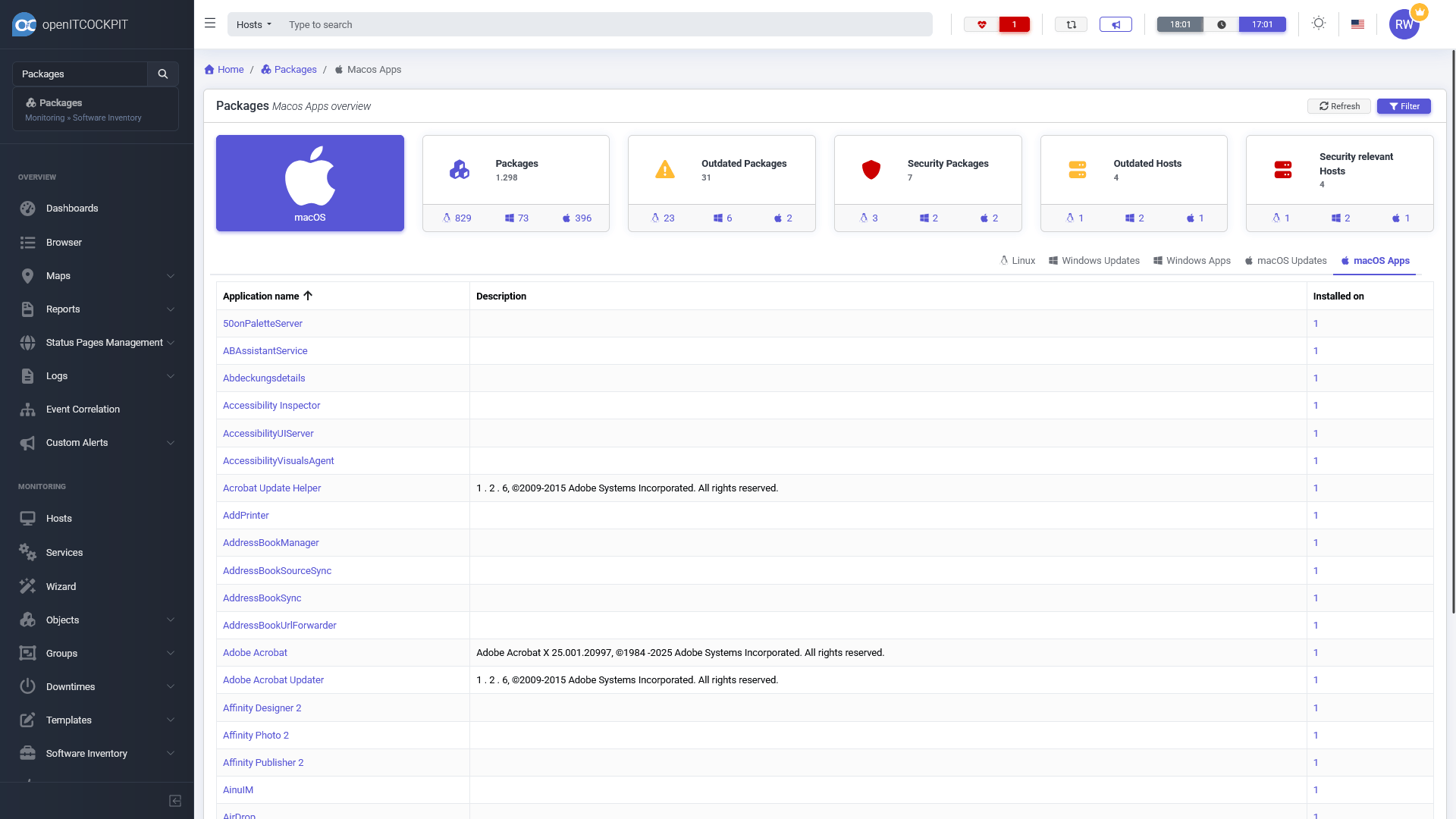
Windows and macOS Apps are listed in a seperate overview.
Agent Capabilities
The openITCOCKPIT Agent collects detailed information about installed packages, installed software, and available security updates across all major operating systems. It also detects when a system reboot is required. An important step to ensure that the latest security updates are fully applied.
Linux
On Linux systems, the agent gathers a complete list of installed packages, identifies available updates, and, where supported, highlights security updates.
| Package Manager | Installed Packages | Available Updates | Security Updates | Reboot Required |
|---|---|---|---|---|
apt |
✅ | ✅ | ✅ | ✅ Method |
dnf |
✅ | ✅ | ✅ | ✅ Method |
yum |
✅ | ✅ | ✅ | ✅ Method |
zypper |
✅ | ✅ | ✅ | ✅ Method |
pacman |
✅ | ✅ | - | Not supported |
rpm |
✅ | - | - | - |
Windows
On Windows systems, only operating system updates are reported, as there is no unified package manager. The agent retrieves information about installed software and reboot requirements via the Windows Registry.
| Available Windows Updates | Installed Software | Reboot Required |
|---|---|---|
Via PowerShell Microsoft.Update.Session |
via Registry | via Registry |
macOS
On macOS systems, only operating system updates are reported, as there is no package manager. Installed software information is collected using system_profiler. Reboot detection is not supported on macOS.
| Available macOS Updates | Installed Software | Reboot Required |
|---|---|---|
| ✅ | via system_profiler |
Not supported |
Data collection
The data is collected by the openITCOCKPIT Agent.
The configuration options for the Software Inventory feature can be found in the packagemanager section of the agent's configuration file.
By default, the Software Inventory collection will be performed every 60 minutes.
- For Agents running in Pull mode, the openITCOCKPIT Server will pull the data from the Agent via a cron job.
- For Agents running in Push mode, the Agent will push the data to the Server at the configured interval.
Here is an example configuration:
#########################
#   Software Inventory  #
#########################

[packagemanager]

# Enable Software Inventory Collection
enabled = True

# Interval in minutes how often the software inventory should be collected
check-interval = 60

# Enable check for available package updates
# This option will refresh the meta data of the package manager (e.g. apt-get update) and
# will check if updates are available for installed packages.
# It will NOT INSTALL ANY UPDATES!
# This option requires that the packagemanager is in a working state.
# This means that the command apt-get update or dnf --refresh should work without errors
# Note: If your system requires a proxy server to access the internet please make sure that
# the proxy settings are correctly configured for the used package manager.
enable-update-check = True

# Limit the length of package description strings
# -1 = no limit (complete description, not recommended)
#  0 = disable descriptions
# >0 = limit length to given number of characters
limit-description-length = 80
Known Limitations
Collecting software inventory information through openITCOCKPIT Satellite Systems is currently not supported. Please ensure that the monitored systems are directly connected to the openITCOCKPIT Central Server.