Event correlation CE
The event correlation module in openITCOCKPIT is a very helpful component when you need a single, overall status for different services.
So what is an “event correlation”? Simply put, an event correlation is a virtual host with virtual services.
When creating an event correlation, a host is created that is derived from the "EVC Template" type host template.
This virtual host is then visible just like any real host in the host overview.
Creating event correlations
After the host for the event correlation has been created, the event correlation itself can then be edited.
In a new event correlation, a single level is initially visible. At this level, click on the button "New vService".
Several services can be connected to each other by logical operators. After a logical operator is created, a virtual service (vService) is always created, which in turn assumes the status drawn from the services and the operator.
Since virtual services are treated like real services by the system, it is possible to add services to a link that are also virtual services from another event correlation.
The following operators are possible:
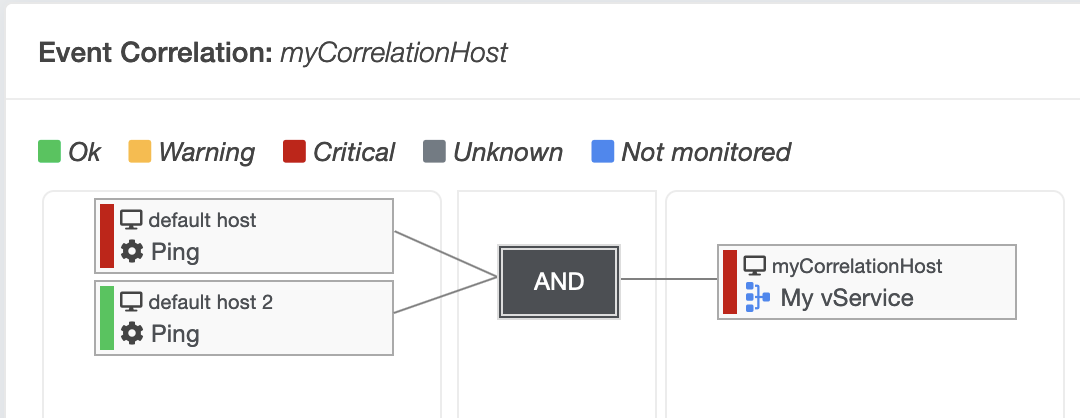
AND
The "AND" operator requires that all its services have the status OK so that the virtual service also receives an OK status.
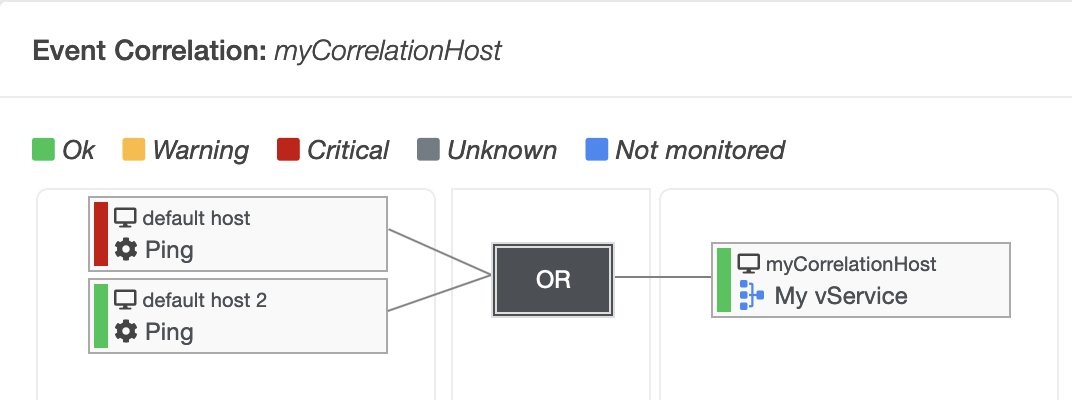
OR
With the "OR" operator, at least one service must have the status OK for the virtual service to receive an OK status.
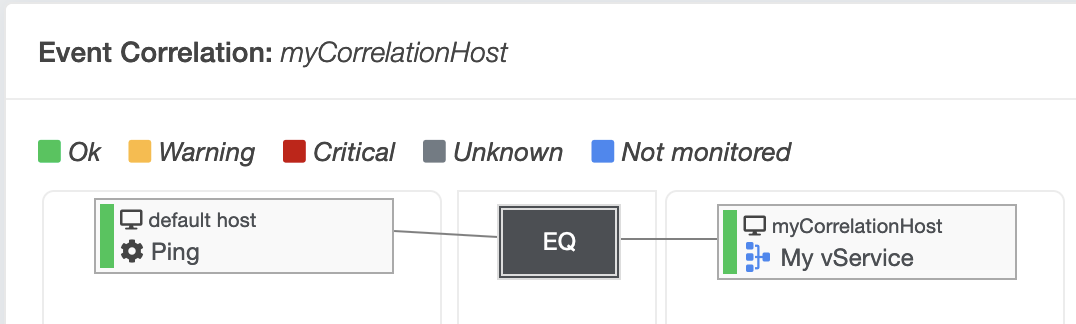
EQUALS
The "EQUALS" operator can only have one service. This operator is suitable for "looping through" a service status in order to use it again in a later level.
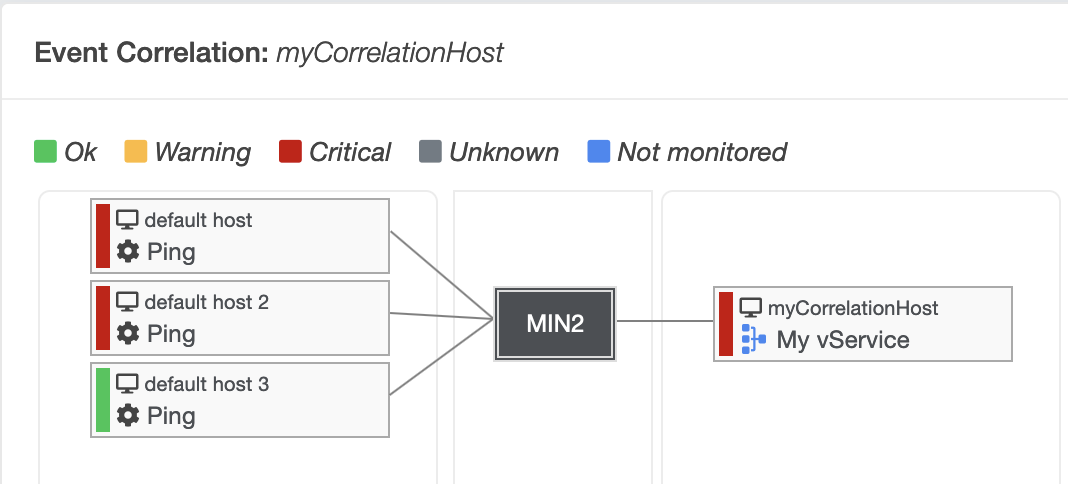
MIN
The "MIN" operator also requires a number as a specifier. This number indicates how many services must have the status OK so that the virtual service receives an OK status.
SCORE
The Score Operator allows you to evaluate the overall health of multiple services by assigning scores to their states and comparing the total score against a defined threshold.
- Each service can be in one of four states: Ok, Warning, Critical, or Unknown.
- The Ok state always has a score of zero (
0). - For the other states (Warning, Critical, Unknown), you can define custom score values for each service. If a score is left empty, it is treated as zero (
0).
Example:
| Service | Warning Score | Critical Score | Unknown Score |
|---|---|---|---|
| CPU load | 1 |
5 |
10 |
| Disk Usage | 5 |
10 |
blank (treated as 0) |
If "CPU load" is in a warning state and "Disk Usage" is in a critical state, the total score is 11. 1 (CPU load) + 10 (Disk Usage) = 11.
You can set thresholds for the operator, such as:
- Warning:
5 - Critical:
10 - Unknown:
900
The operator compares the total score to these thresholds to determine the overall result:
- If the total score is less than the warning threshold, the result is Ok.
- If the total score is greater than or equal to the warning threshold but less than the critical threshold, the result is Warning.
- If the total score is greater than or equal to the critical threshold, the result is Critical.
- If the total score is greater than or equal to the unknown threshold, the result is Unknown.
This system helps you flexibly assess the combined status of your services based on their individual states and your chosen scoring rules.
Scores can be negative or positive values, and the thresholds can be set according to your specific requirements. A score value of Infinity is niot supported, but you can use a very high value to achieve a similar effect.
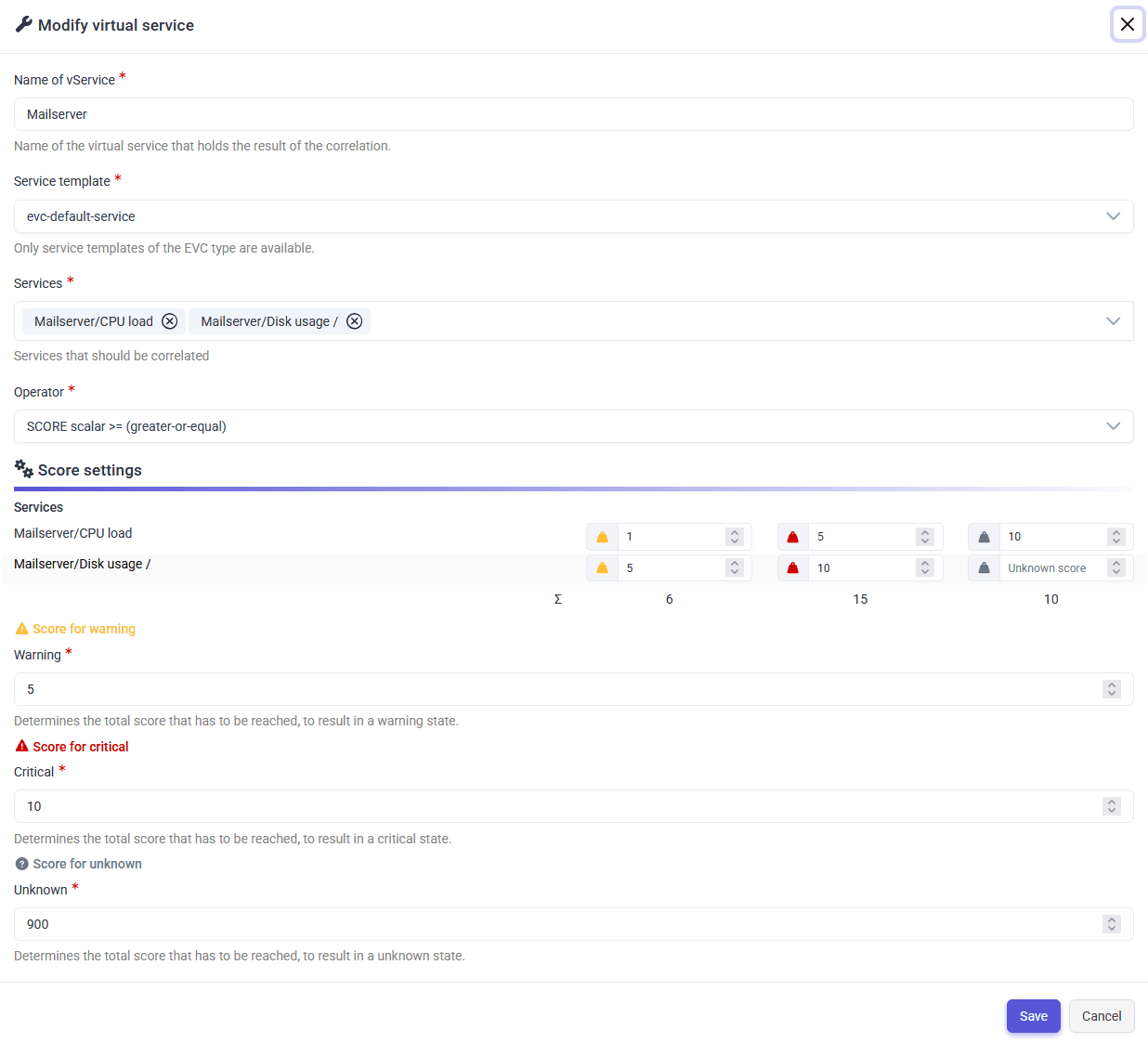
The SCORE operator can operate in four different modes:
- SCORE scalar ≥ (greater-or-equal): The total score is compared against the thresholds using a greater-or-equal comparison. For example, if the total score is 11 and the warning threshold is 5, the result would be Warning because 11 ≥ 5.
- SCORE scalar ≤ (less-or-equal): The total score is compared against the thresholds using a less-or-equal comparison. With this operator, the lower the score, the worse the status. This means the warning threshold should be higher than the critical threshold. The unknown threshold should be the lowest. Example: The warning threshold is 15, the critical threshold is 10, and the unknown threshold is 0. If the total score is 13, the result is Warning, since 13 ≤ 15. If the total score is 10, the result is Critical, since 10 ≤ 10, and so on.
- SCORE Range Inclusive (≥ 10 and ≤ 20 - inside the range of 10 to 20): The total score is compared against the thresholds to check if it falls within a specified range. For example, if the total score is 15 and the warning threshold is set to a range of 10 to 20, the result would be Warning because 15 is within the range of 10 to 20.
- SCORE Range Exclusive (< 10 or > 20 - outside the range of 10 to 20): The total score is compared against the thresholds to check if it falls outside a specified range. To ensure that all statuses are taken into account, the thresholds should be set so that the excluded ranges are nested within one another. The unknown threshold has the widest range, and the warning threshold has the narrowest range. Example: The warning threshold is from 2 to 3. The critical threshold is from -2 to 7, and the unknown threshold is from -5 to 5. If the total score is 4, the result is Warning, since 4 lies outside the defined range.
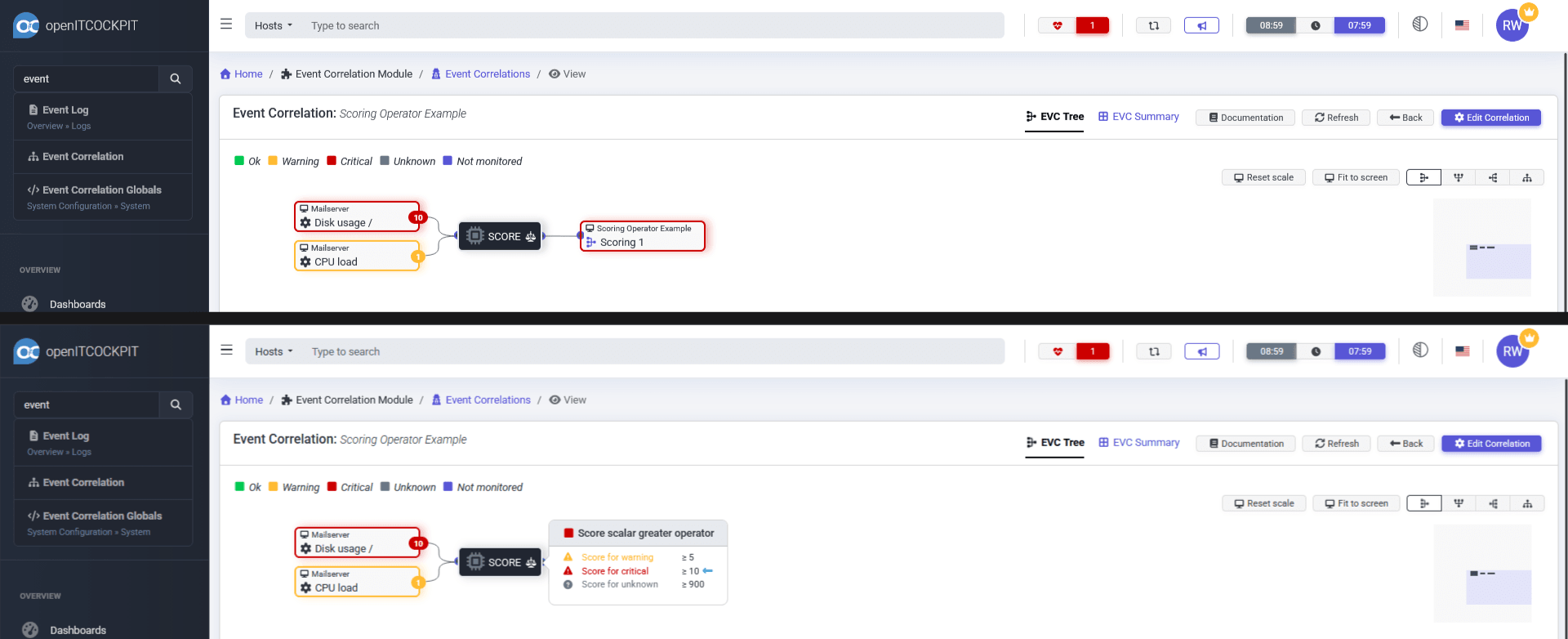
In the view of the event correlation, each service will display its score. The sum of all scores (10 + 1 = 11 in the example) will be used to determine the overall status of the virtual service based on the defined thresholds and the selected score operator.
A tooltip will show the thresholds defined in the operator configuration.
11 (total score) is ≥ 5 (warning threshold)
11 (total score) is ≥ 10 (critical threshold) → Result: Critical
11 (total score) is not ≥ 900 (unknown threshold)
| Field | Required | Description |
|---|---|---|
| Basic configuration | ||
| Container | Container in which the host is to be created | |
| Host templates | Host template in which the host is to be created | |
| Host name / name of the correlation | Name of the host or event correlation to be created | |
| Description | Description of the host template. Will be inherited as the host description | |
| Priority | Priority for filtering in lists | |
| Checking configuration | ||
| Checking period | Defines the timeperiod in which checks should take place | |
| Checking interval | Defines the interval at which checks should take place. See intervals | |
| Repeat interval | Defines the waiting period before a new check takes place after a non-UP status has been reached. See intervals | |
| Max. number of checking attempts | Determines the number of attempts to check a host before it transitions to a hard state. See Intervalle | |
| Notification configuration | ||
| Notification period | Determines the time period in which notifications are sent for a host | |
| Notification interval | Defines the interval for notifications sent to this host | |
| Contacts | One or more contacts who will receive notifications about this host | |
| Contact groups | One or more contact groups that will receive notifications about this host | |
| Host notification options | Defines the statuses that must be reached before notifications are sent |